Export orders
Quotes, invoices and packing lists from the data you already have
Every export order starts from a buyer record and your product catalogue. Quote it, confirm it and raise the commercial invoice and packing list without typing the buyer's address or the product specs again.
From quotation to completed order
Draft
Build the order from the buyer and your catalogue: quantities, prices, discounts, Incoterm and place, payment terms and references.
Quoted
Send it as a quotation. The PDF states that prices and terms are as offered and the order is binding once confirmed.
Confirmed
When the buyer agrees, confirm it. The PDF becomes an order confirmation.
Completed
Close it once it has shipped and been invoiced. Orders that don't go ahead are marked cancelled or lost.
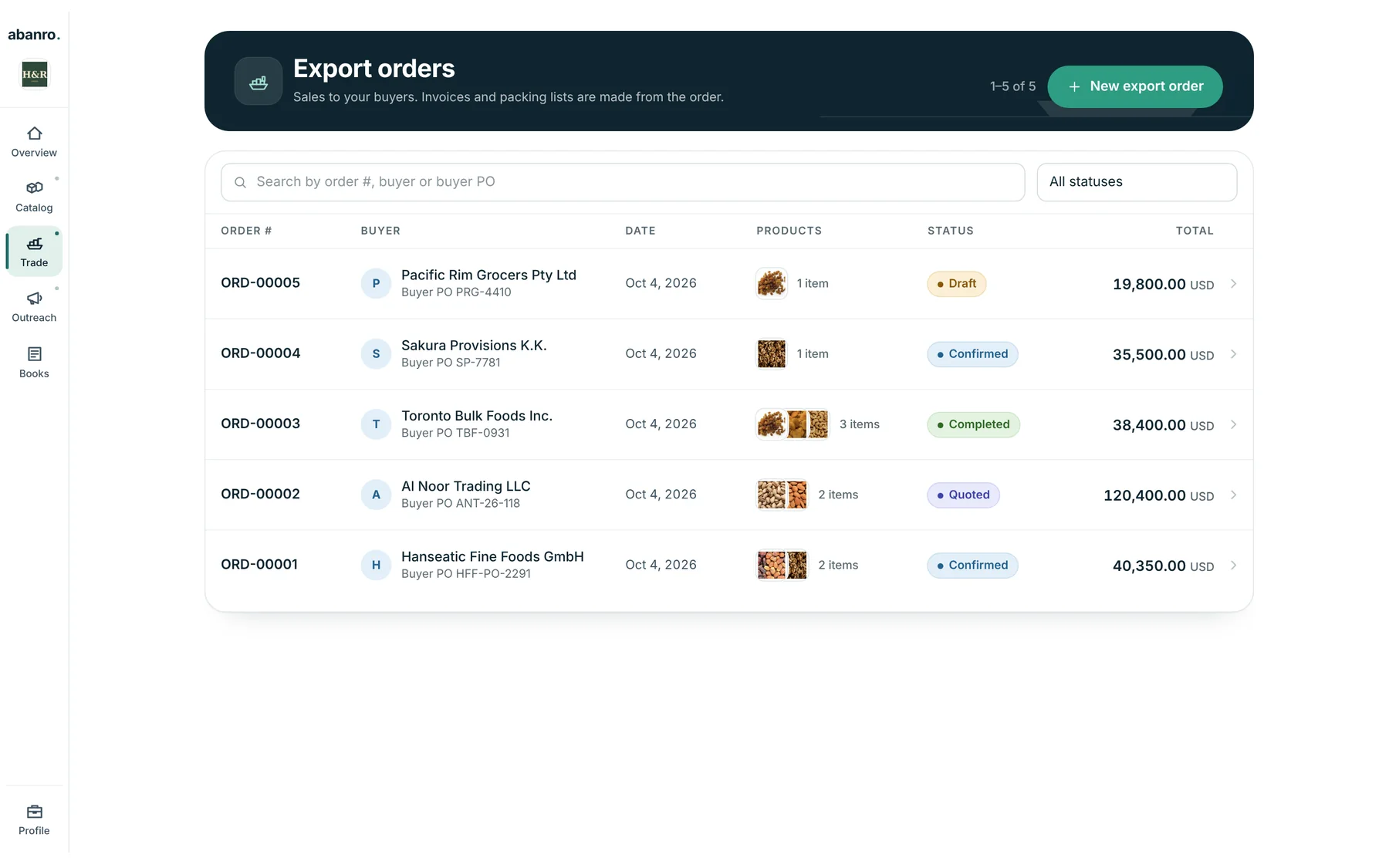
Export orders tied to buyers and products
See every order with its buyer, buyer PO number, stage and total. Each order carries the buyer's address and the products' HS codes, origin, weights and packing from your catalogue.
- Incoterm and named place, payment terms, buyer reference and notes.
- Line discounts and the currency of your workspace.
- One PDF that reads Draft order, Quotation or Order confirmation depending on the stage.
Commercial invoices and packing lists
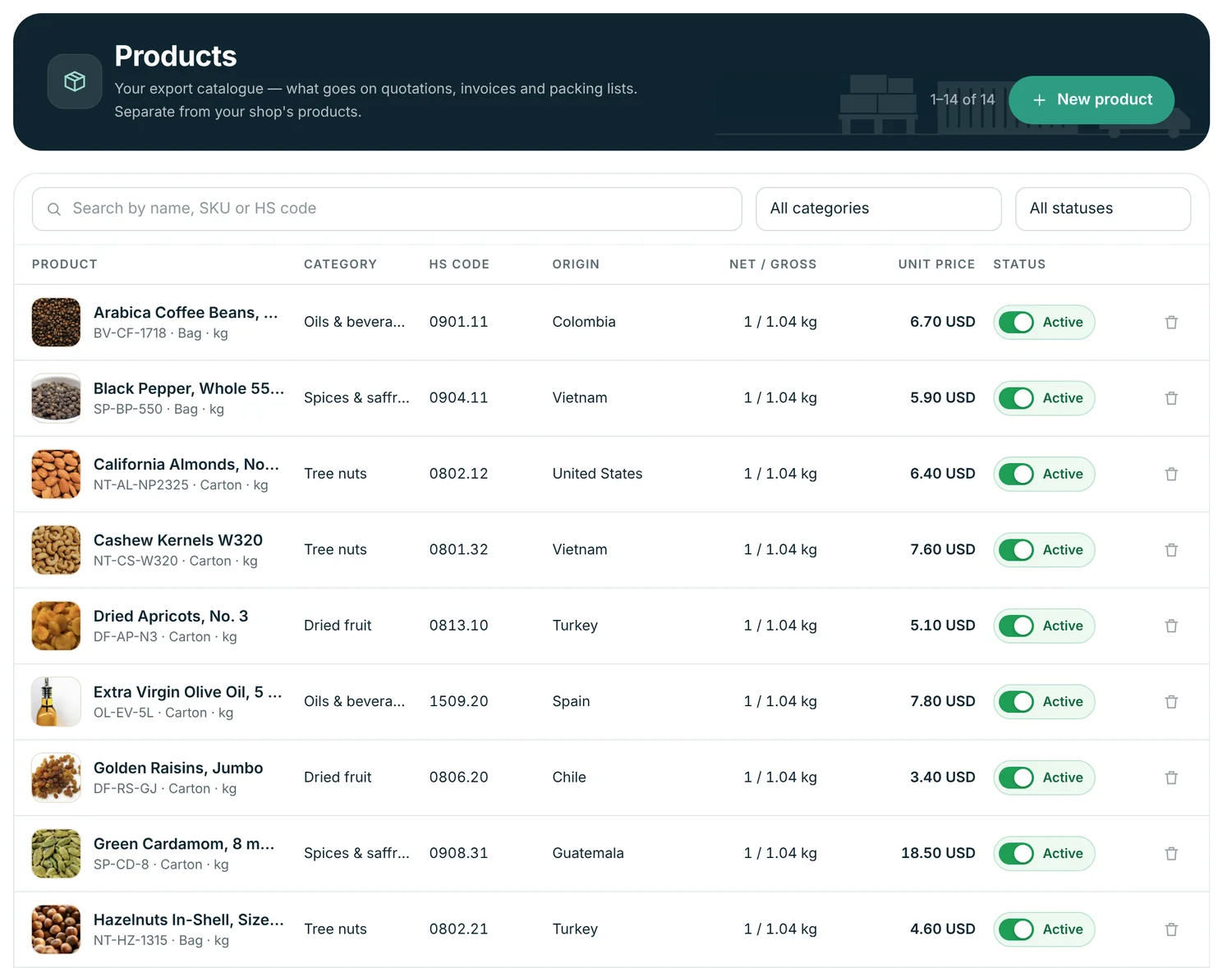
Raise invoices and packing lists from a confirmed order. Weights and packing come from the catalogue, so they match what you quoted.
- Invoices and packing lists numbered in sequence for your workspace.
- Packing lists with package count and type, net and gross weight, and marks and numbers.
- Download as PDF or Word, with or without your letterhead.
- Attach the other shipment files: certificates, bills of lading, permits.
Purchasing and stock
If you buy in what you sell, Abanro Export also keeps the supply side: vendors, purchase orders you can send as PDF, and goods receipts that bring stock in.
Inventory is worked out per location from receipts, issues, transfers and adjustments, so you can see what's available before you confirm a quantity.
Abanro is not freight, customs or accounting software. It prepares the sales documents; your forwarder, broker and accountant handle the rest.
Questions
Can I make a quotation and then turn it into an order?
Yes. A quotation is an export order in the Quoted stage. When the buyer accepts, you confirm the same order, so nothing is retyped, and the PDF changes from Quotation to Order confirmation.
Which export documents does Abanro produce?
Quotations and order confirmations, commercial invoices, packing lists and purchase orders. Invoices and packing lists download as PDF or Word, with or without your letterhead. Certificates, bills of lading, permits and other files you get from others can be attached to the order.
Does it produce certificates of origin or customs declarations?
No. Those come from chambers of commerce, inspection bodies, your freight forwarder or customs broker. You can store them with the order so everything for a shipment is in one place.
Which Incoterms are supported?
You choose the Incoterm and the named place for each order, and products can carry a default Incoterm. The order and its documents show both.
Can I edit an invoice in Word?
Yes. Download the invoice or packing list as a Word file if you need to make a change your buyer or bank asks for, or as a PDF to send as it is.
Keep exploring
- CRM for exporters Keep importers and distributors in one buyer record with tags, notes and order history.
- Digital product sheets Share your range by link, QR code or PDF, with specs, packing and prices.
- For food exporters Dried fruit, nuts, dates, spices and ingredients: specs, certificates and show follow-up.
- Building an export product catalogue The fields buyers check first: HS code, specs, packing, MOQ, Incoterms and certificates.
Quote your next export order from the buyer's record.
Add your products once and every quotation, invoice and packing list starts from the same data.
No credit card required · 14-day free trial · Plans from $49/month